You Don’t Need a Fancy Vim Setup
Vim is a highly configurable text editor designed for the terminal on UNIX systems and macOS. It’s a great choice for editing files inside a remote server or even local files, but it can quickly become hard to maintain if you start installing 20+ plugins just to make it feel like an IDE like Visual Studio Code.
What you really need is a simple configuration that makes editing smooth and gets straight to the point: editing files in the fastest and cleanest way possible.
Getting Started
I’ll share what actually works for me and how my setup looks—but first, let’s configure Vim.
If you already have a configuration, just edit:
~/.vimrcIf this is your first time:
touch ~/.vimrcMinimal Vim Configuration
Copy and save the following:
" Enable syntax highlighting: A little bit of colour is always good
syntax on

" Show line numbers: So you know what line to edit and its a great way to jump between lines.
set number

" Enable mouse support: So you can click any part of the line you want to edit and scroll betweeen the file.
set mouse=a

" Better indentation: So your code looks more organized, there are some languange that are strict about identation
set autoindent
set smartindent
set tabstop=2
set shiftwidth=2
set expandtab

" Highlight search: it will highlight when you search a word inside Vim
set hlsearch
set incsearch

" Enable clipboard sharing
set clipboard=unnamedplus
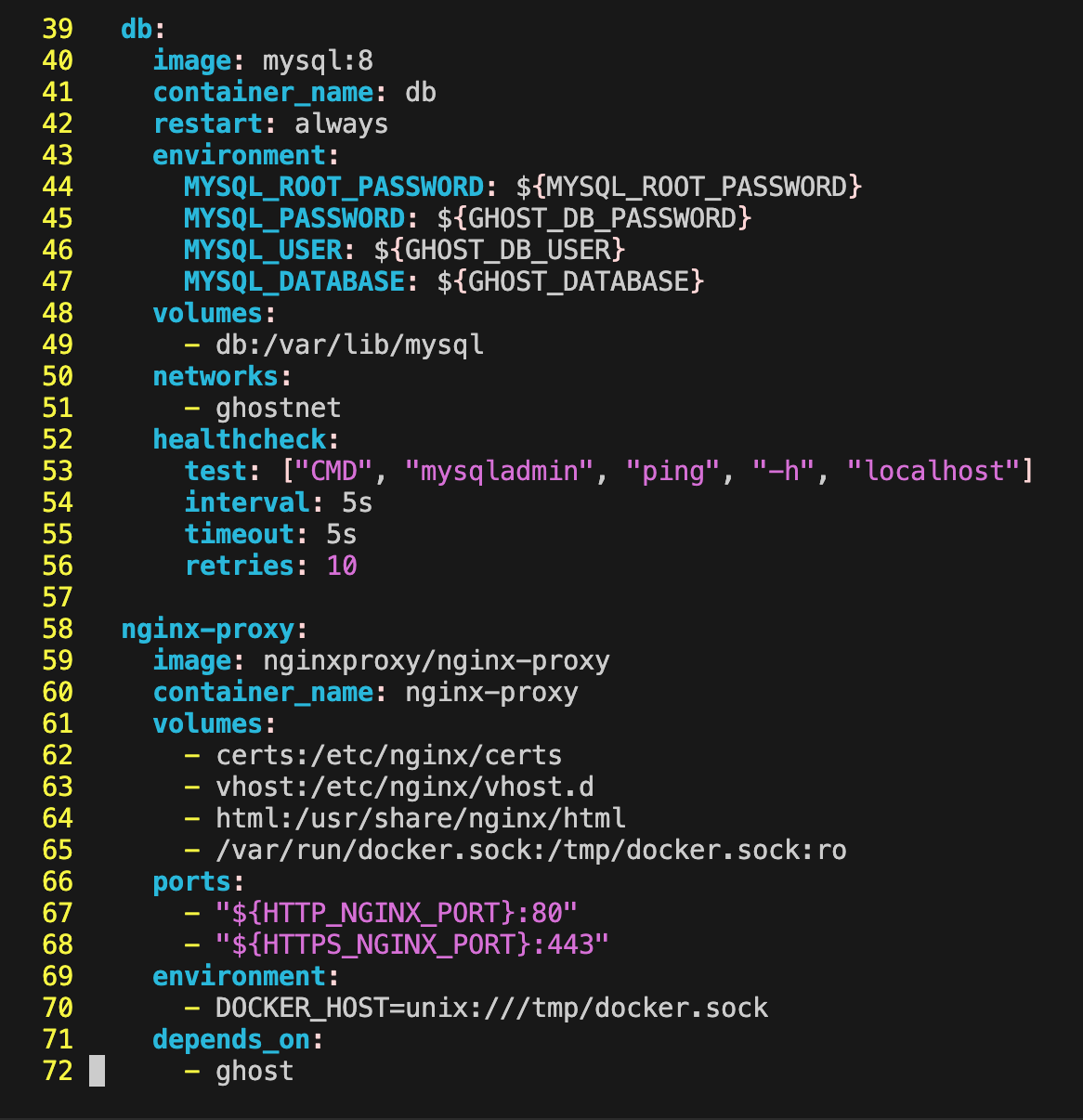
After saving it, this is an example of how it will look like:
That's it. Congrats! You have made Vim readable, predictable, and usable everywhere.